
Your Phone's Hidden Lifeline: How Pressing the Power Button 5 Times Can Save Your Life (Full Guide)
Can You Call Emergency Services by Pressing the Power Button 5 Times? Here’s How It Really Works
Joel Inocencio
7/21/20264 min read
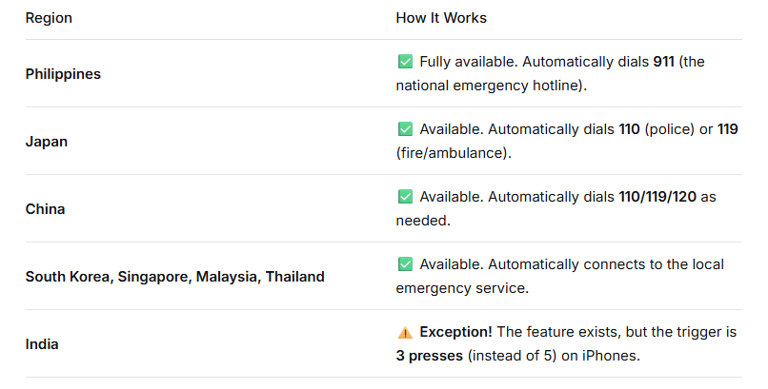
4. Does This Feature Work Internationally? (Philippines, Asia, etc.)
Yes—it works in almost every country in the world.
According to Apple and Google’s official guidelines, this feature automatically dials the local emergency number based on where you are physically located.
You may have heard this tip online: in an emergency, just press your phone’s power button five times quickly, and it will automatically call for help — without you saying a word.
Imagine this: you’re in a dangerous situation. You need help, but you can’t speak—and you definitely can’t be seen making a call.
There’s a little-known feature on most modern smartphones that solves exactly this problem. By pressing the power button five times quickly, your phone will automatically dial emergency services—no tapping the screen, no speaking into the mic.
This feature is too important not to share. So, here is everything you need to know—how to set it up on iPhone and Android, how to silence the alert, which specific phones support it, and whether it works in your country (including the Philippines and across Asia).
1. How to Set It Up on iPhone (Step-by-Step)
Apple calls this Emergency SOS. It works on iPhone 8 and later models.
Here’s how to turn it on:
Open the Settings app.
Scroll down and tap Emergency SOS.
Toggle on “Call with 5 Presses”.
What happens when you trigger it:
Rapidly press the side button (power/lock button) five times.
A countdown screen appears (with a slider).
When the countdown ends, your iPhone automatically calls your local emergency number (e.g., 911 in the US, 110/119 in Japan, 911 in the Philippines).
Your location is shared with responders.
If you’ve set up emergency contacts in the Health app, they’ll receive a text with your location and a message that you’ve activated SOS.
2. ⚠️ The Most Important Question: How Do You Silence the Countdown Alert?
By default, when you trigger this, your iPhone plays a very loud, attention-grabbing beep during the countdown. This is designed to prevent accidental calls—but if you're hiding from an attacker, that sound is a dealbreaker.
The good news: you can turn it off.
Go to Settings → Emergency SOS.
Find the toggle for “Countdown Sound” (or “Alert”) and switch it OFF.
Once disabled, triggering Emergency SOS will be completely silent, even if your phone is on silent or Do Not Disturb mode.
A critical warning: Turning off the sound means you could accidentally call 911 in your pocket without realizing it. Consider leaving it on for daily use and only disabling it when you truly need discretion.
3. Does This Work on Android? (And Which Specific Phones?)
Yes. Most Android phones running Android 12 or later have a nearly identical feature.
However, to make this truly universal, let’s get specific. Here are the major smartphone brands and models that officially support this (or received the Android 12 update that includes it):
Google Pixel: Pixel 3 and newer (Pixel 6 series and later launched with it).
Samsung Galaxy: S20, S21, S22, S23, S24 series; Z Fold/Flip 2, 3, 4, 5, 6; A series (A12, A13, A32, A52, A53, etc.); Note 10, 20, and newer.
OnePlus: OnePlus 8, 9, 10, 11, 12 series; Nord CE and newer.
Xiaomi: Xiaomi 12 series, Redmi Note 12 series, and later models (running MIUI 13/14).
Oppo / Vivo / Realme: Oppo Find X3, X5; Reno5 and newer; Vivo X60, X70, X80 series; Realme GT series and newer.
Motorola: Razr (2022+), Edge series, and most 2022+ Moto G models.
Sony: Xperia 1 III, 5 II, 10 V, and newer.
Nokia: X10, X20, XR21, and newer Android One devices.
ASUS: Zenfone 8, 9, 10; ROG Phone 5, 6, 7 and newer.
How to check your Android phone:
Go to Settings → About Phone → Check the Android version.
If it says Android 12, 13, 14, or 15, you have this feature.
Look for “Emergency SOS” or “Safety & Emergency” in your Settings to enable it (usually by pressing the power button 5 times).
Final Thoughts
This feature is free, built into your pocket, and could be the difference between life and death in a crisis. It takes less than 30 seconds to set up.
Please take a moment right now to:
Check your phone’s Android version or iOS settings.
Turn on the 5-press emergency call.
Decide whether to keep the countdown sound on or off based on your personal safety needs.
Then, share this article with your friends, family, and colleagues. You never know when this knowledge might save someone’s life. Stay safe out there. 📱🆘
📌 A Critical Distinction: Normal SOS vs. Satellite SOS
The “press the power button 5 times” feature is a standard cellular feature that works anywhere there’s a mobile network signal. This is available globally.
Apple also offers Emergency SOS via Satellite (for iPhones 14 and later), which works when you have no cellular or Wi-Fi signal. This satellite feature is limited to specific countries and is currently not available in the Philippines, many parts of Southeast Asia, or India. But for everyday emergencies with a signal, the 5-press feature has you covered.
5. Three Vital Things You Must Know Before Using This
❶ Try to speak if you possibly can
While the phone will automatically dial, emergency dispatchers in many countries have stated that if they hear absolutely nothing on the line, they may not dispatch help immediately, and they can’t always pinpoint your precise location. If you are physically able to speak without escalating the danger, say, "I need help" or "Police, please." If you absolutely cannot speak, see if your country offers SMS emergency texting (e.g., China has 12110; the US has 911 texting in many areas).
❷ It works even without a SIM card or signal bars
Did you know that by international regulation, any phone can dial emergency numbers as long as it has battery power—even without a SIM card or active cellular plan. Your phone will latch onto any available network to make that life-saving call.
❸ How to cancel if you trigger it by accident
On iPhone: During the countdown, tap the “Cancel” button on the screen. If the call already connected, stay on the line and tell the operator it was a mistake—don't just hang up, or they might send a response team to your location anyway.
On Android: Look for the “Cancel” or “Stop” button during the countdown.
Contact
Questions or thoughts?
admin@aginghappilyresource.com
© 2025.
Aging Happily Resource.
All rights reserved.